
When a browser issue only happens for a customer, a HAR file can be the fastest way to see what the browser is doing.
The trick is collecting a HAR file that is useful for troubleshooting without casually exposing session cookies, authorization headers, customer data, or form submissions.
This guide gives support teams and customers a practical Chrome workflow.
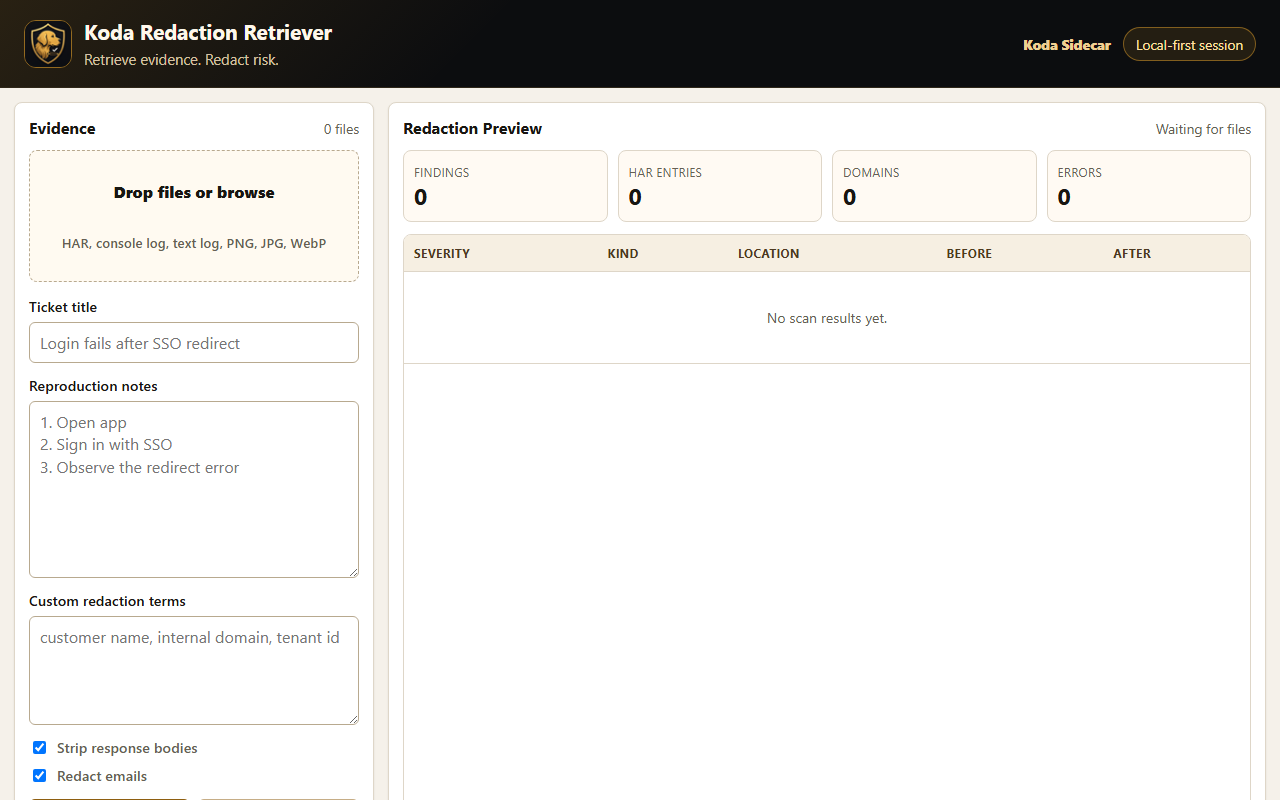
Screenshot: Redaction Retriever's local workspace for collecting HAR files, console logs, screenshots, and reproduction notes before sharing.
Before You Start
Collect the context first:
- What issue are you reproducing?
- What page or workflow should be recorded?
- Which browser and operating system are you using?
- What approximate timestamp will support see in the HAR?
- Are you allowed to capture this data?
- Does the support team need sensitive headers, or is a default sanitized export enough?
Do not record unrelated browsing. Start as close to the issue as possible.
Step 1: Open Chrome DevTools
Open the page where the issue occurs.
Then open DevTools:
- Windows/Linux:
Ctrl+Shift+I - macOS:
Option+Command+I - Or use Chrome menu: More Tools > Developer Tools
Select the Network tab.
Step 2: Enable Preserve Log When Needed
Enable Preserve log if the issue involves:
- Login.
- SSO.
- Redirects.
- Page reloads.
- Multi-step checkout or onboarding flows.
- Anything that disappears when the page navigates.
Preserve log keeps earlier requests visible after navigation.
If the issue is a single API call on a stable page, Preserve log may be less important. For most support workflows, it is safer to enable it.
Step 3: Clear Old Requests
Before reproducing the issue, clear the Network panel.
This removes unrelated requests from the capture and makes the HAR easier to review. A smaller HAR is also easier to sanitize.
Step 4: Reproduce the Issue
Now perform only the steps needed to trigger the problem.
Good reproduction note:
1. Logged in as admin.
2. Opened Settings > SSO.
3. Clicked Test SAML login.
4. Redirected to IdP.
5. Returned to app and saw 403 at 10:42 AM Central.
Weak reproduction note:
It broke again.The support engineer needs the HAR and the steps.
Step 5: Export the HAR
Use the Network panel export/download button to save the HAR file.
In modern Chrome versions, HAR exports exclude some sensitive headers by default. Chrome also provides a sensitive HAR export option when that behavior is enabled in DevTools settings. Only use the sensitive export path if your support team specifically needs it and you understand the risk.
If a vendor asks for an unsanitized HAR, ask why. Sometimes they need missing auth or cookie context for a login failure. Sometimes they only need the request shape, timing, and status codes.
Edge and Firefox Notes
Microsoft Edge uses Chromium DevTools, so the Chrome workflow is nearly identical:
- Open DevTools.
- Use the Network tab.
- Enable Preserve log when redirects matter.
- Clear existing requests.
- Reproduce the issue.
- Export the HAR.
- Review or sanitize before sharing.
Firefox also supports HAR export from the Network panel, but labels and menu placement differ. For cross-browser support instructions, keep the customer-facing request focused on the behavior:
Please capture the browser network log while reproducing the issue, export it as a HAR file, and
review or sanitize it before upload.
Chrome-specific screenshots should not be reused as Firefox instructions without checking the current Firefox UI.
Step 6: Review or Sanitize Before Sharing
Before uploading the HAR, check for:
- Cookies.
- Authorization headers.
- Session tokens.
- API keys.
- Passwords.
- Email addresses.
- Customer names.
- Internal hostnames.
- Query parameters with secrets.
- Request or response bodies with personal data.
If you use a sanitizer, review the output. Sanitization is a safety step, not a guarantee.
Step 7: Share the HAR Securely
Do not paste a HAR into a public issue, community forum, Slack channel, or email thread unless your company policy allows it.
Use the support vendor's secure upload path when available.
Include:
- The sanitized HAR.
- Reproduction steps.
- Timestamp and timezone.
- Browser version.
- Any console error screenshots.
- Ticket number or account context.
Customer-Safe HAR Request Template
Support teams can send:
Could you capture a HAR file while reproducing the issue in Chrome?

Please keep the capture limited to this workflow:
[describe workflow]

Steps:
1. Open the affected page.
2. Open Chrome DevTools > Network.
3. Enable Preserve log.
4. Clear the existing network entries.
5. Reproduce the issue.
6. Export the HAR.
7. Review or sanitize the HAR before sharing.

Please share the timestamp, timezone, browser version, and reproduction steps with the file.
When Not to Ask for a HAR
Do not ask for a HAR by default if:
- A screenshot or error ID is enough.
- Server logs already show the root cause.
- The workflow includes highly sensitive data and no secure upload exists.
- The customer cannot safely review the file.
- Your team has not explained what the HAR is needed for.
HAR files are powerful, but they should not be the first reflex for every ticket.
FAQ
Should I enable sensitive HAR export in Chrome?
Only if the support team specifically needs data excluded by default and you are allowed to share it. Review and sanitize the file before sending.
Why is my HAR missing cookies or Authorization headers?
Modern Chrome excludes some sensitive headers by default. That can be good for safety, but it may affect troubleshooting of auth-related issues.
Should I include console logs too?
If the issue includes visible UI errors, failed JavaScript, or browser-only behavior, console logs can be useful alongside the HAR.
Can I edit a HAR manually?
Yes, but be careful. Removing too much context can make the HAR hard to troubleshoot. Prefer structured sanitization and then review the output.
CTA
Redaction Retriever by Koda Sidecar helps review and sanitize HAR files, logs, screenshots, and support bundles locally before sharing.