
Asking a customer for a HAR file should not feel like asking them to upload a mystery box of browser data.
HAR files are useful for SaaS support, especially for login, redirect, API, and browser-specific issues. They can also contain sensitive data. A customer-safe workflow explains why the file is needed, limits what gets captured, reminds the customer to sanitize it, and routes the file through an approved upload path.
This workflow is for support teams that want better evidence without creating unnecessary data risk.
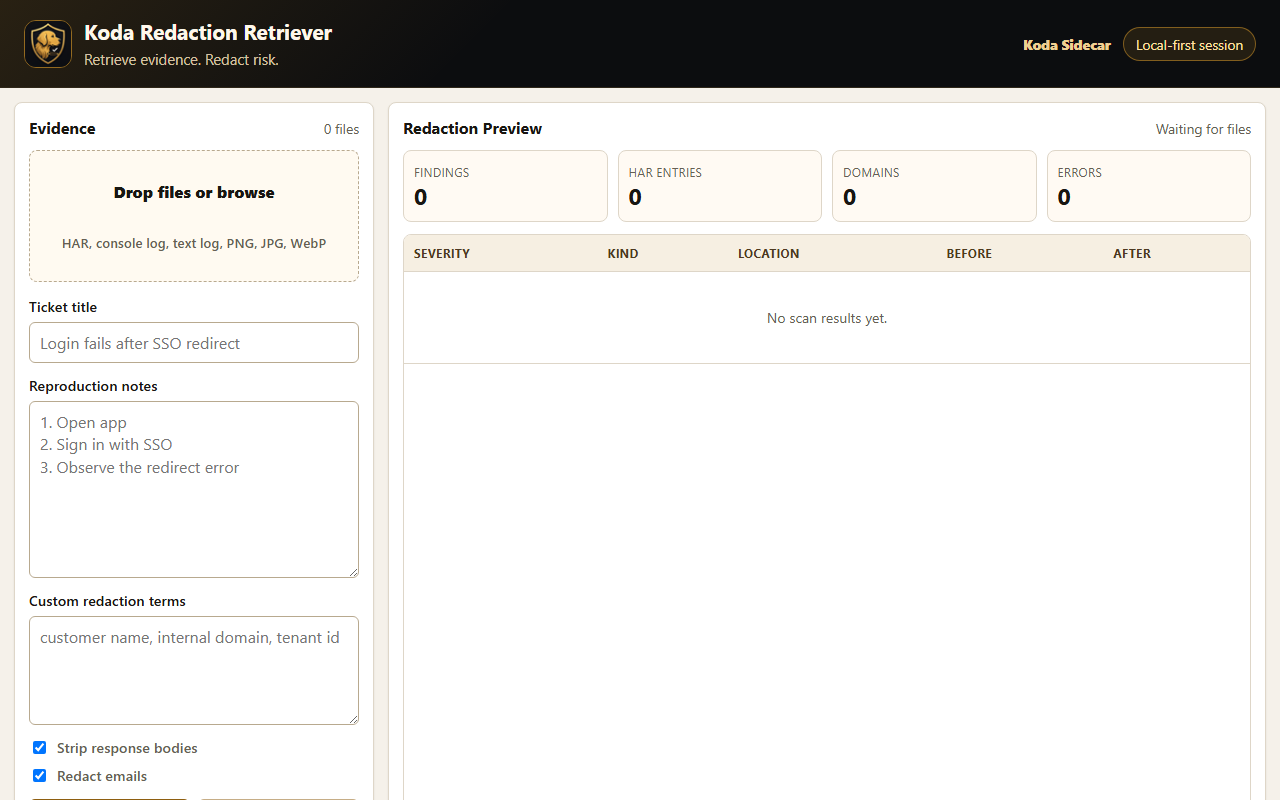
Screenshot: Redaction Retriever's local workspace for adding HAR files, reproduction notes, screenshots, and custom redaction terms.
Step 1: Decide Whether a HAR Is Actually Needed
Do not ask for a HAR file just because the issue is confusing.
Ask for one when the browser request flow matters:
- Login or SSO failures.
- Redirect loops.
- CORS errors.
- API calls failing in the browser.
- Slow page loads.
- Missing assets.
- Tenant-specific frontend behavior.
- Issues that reproduce only in the customer's browser.
Do not ask for one when:
- Server logs already show the root cause.
- A screenshot or error ID is enough.
- The workflow contains highly sensitive data and no safe upload path exists.
- The customer cannot safely review or sanitize the file.
Step 2: Explain the Purpose
Customers are more likely to help when the request is specific.
Weak request:
Please send a HAR.Better request:
Could you capture a HAR while reproducing the SSO error? It will help us see the redirect sequence and identify which request returns the 403.This tells the customer what the team is looking for and reduces random capture attempts.
Step 3: Limit the Capture Scope
Tell the customer exactly what to record.
Example:
Please record only this workflow:
1. Open Settings > SSO.
2. Click Test SAML login.
3. Complete the IdP login.
4. Stop after the 403 appears.
Limiting scope reduces file size and sensitive data exposure.
Step 4: Provide Safe Capture Instructions
Include a standard set of browser instructions.
For Chrome:
1. Open the affected page.
2. Open DevTools > Network.
3. Enable Preserve log.
4. Clear the current network entries.
5. Reproduce the issue.
6. Export the HAR.
7. Review or sanitize the HAR before sharing.
Mention sensitive export only when necessary. Modern Chrome excludes some sensitive headers by default, and support teams should be intentional before asking customers to include them.
Step 5: Ask for Supporting Context
The HAR is easier to use when paired with context.
Ask for:
- Timestamp and timezone.
- Browser and version.
- Operating system.
- Reproduction steps.
- Screenshot of the visible error.
- Console logs if relevant.
- Whether the HAR was sanitized.
- Whether sensitive export was enabled.
This saves a round trip.
Step 6: Sanitize Before Sharing
The customer should review or sanitize the HAR before upload.
Tell them to look for:
- Cookies.
- Authorization headers.
- Session tokens.
- API keys.
- Passwords.
- Email addresses.
- Customer names.
- Internal hostnames.
- Request and response bodies.
Also make it clear that sanitization is best-effort and should be reviewed.
Step 7: Use a Secure Upload Path
Do not ask customers to paste HAR contents into a ticket thread.
Use:
- Vendor secure upload.
- Private ticket attachment, if policy allows.
- Encrypted file transfer.
- Internal support evidence portal.
Avoid:
- Public GitHub issues.
- Community forums.
- Shared chat channels.
- Email attachments for sensitive captures, unless policy allows.
Step 8: Store and Delete According to Policy
Support teams should define what happens after upload:
- Who can access the HAR?
- Where is it stored?
- How long is it retained?
- Is it attached to the ticket permanently?
- Can sanitized files be retained while raw files are deleted?
- Is customer permission needed for escalation?
This is not just a security concern. It is a trust concern.
Support Macro: Customer-Safe HAR Request
Could you capture a HAR file while reproducing the issue?

Why we need it:
This will help us inspect the browser request flow and identify which request is failing.

Please record only this workflow:
[specific steps]

Chrome steps:
1. Open the affected page.
2. Open DevTools > Network.
3. Enable Preserve log.
4. Clear the existing network entries.
5. Reproduce the issue.
6. Export the HAR.
7. Review or sanitize the HAR before sharing.

Please include:
- Timestamp and timezone.
- Browser and operating system.
- Reproduction steps.
- Screenshot of the visible error, if available.

Important:
HAR files can contain sensitive data. Please review or sanitize the file before uploading it through [secure upload path].
FAQ
Should support teams ask for unsanitized HAR files?
Only when necessary, and only through an approved secure path. Ask for the minimum evidence needed.
Should every customer receive the same HAR instructions?
Use a standard template, but customize the exact workflow to the issue.
How can support know whether a HAR is browser-sanitized?
Check whether sensitive headers such as Cookie or Authorization are present. Modern Chrome excludes some by default unless sensitive export is used.
What if the customer refuses to share a HAR?
Offer alternatives: screen share, console screenshot, request ID, timestamp for server logs, or a sanitized capture with only specific fields preserved.
CTA
Redaction Retriever by Koda Sidecar helps teams review and package HAR files, logs, screenshots, and reproduction notes locally before sharing support evidence.