
HAR files are useful when they capture the right thing.
They are frustrating when they are empty, too broad, missing the login redirect, stripped of the one header support needed, or shared without review.
Here are the most common HAR file mistakes and how to avoid them.
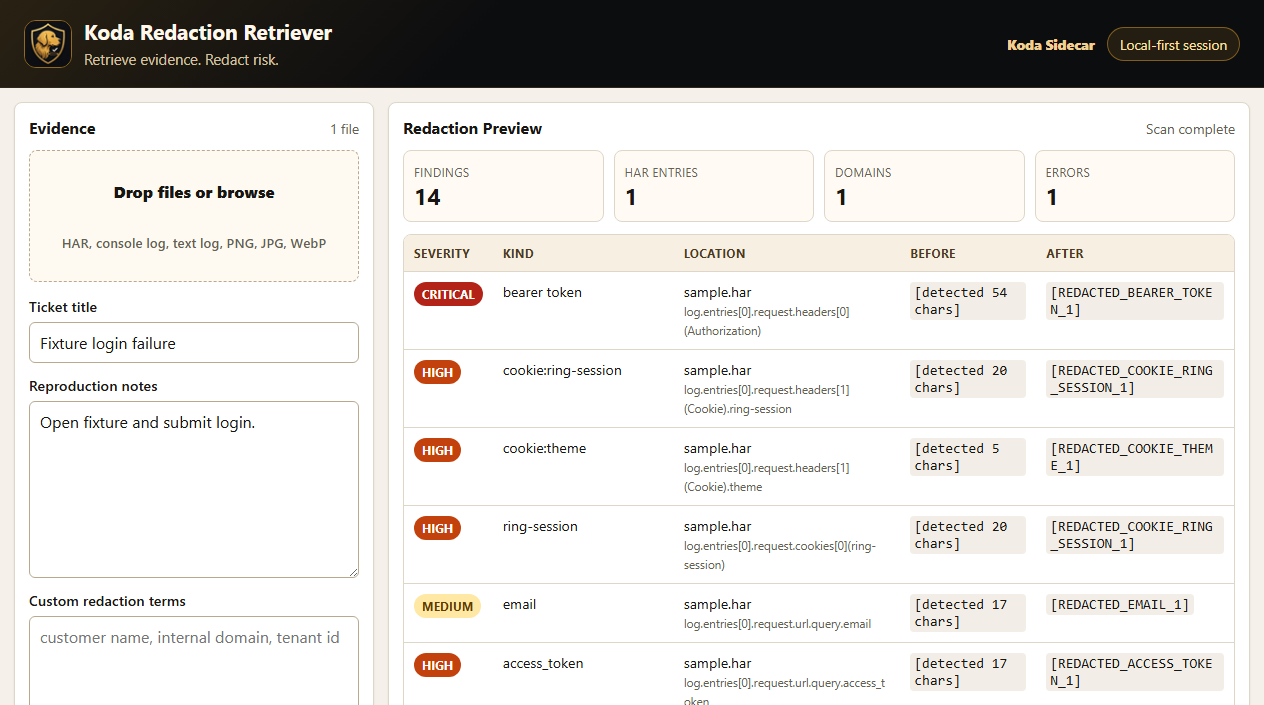
Screenshot: Redaction Retriever showing detected HAR findings after a sample file scan.
Mistake 1: Starting the Capture Too Late
If the customer opens DevTools after the error appears, the important request may already be gone.
Fix:
- Open DevTools first.
- Go to the Network tab.
- Clear old requests.
- Reproduce the issue from the beginning.
For login, checkout, onboarding, and redirect issues, start before clicking the button that begins the flow.
Mistake 2: Forgetting Preserve Log
Some issues involve navigation. Without Preserve log, requests can disappear when the page redirects or reloads.
Fix:
- Enable Preserve log before reproducing login, SSO, redirect, or multi-page flows.
This is especially important for identity-provider redirects.
Mistake 3: Capturing Too Much
A HAR that includes ten minutes of unrelated browsing is harder to inspect and riskier to share.
Fix:
- Clear the Network tab first.
- Record only the workflow needed.
- Stop after the issue appears.
Smaller files are easier to sanitize and easier to troubleshoot.
Mistake 4: Sharing Without Sanitizing
HAR files can include sensitive data. Even when the browser excludes some headers by default, URLs, payloads, and identifiers may still expose private details.
Fix:
- Review or sanitize before sharing.
- Use a secure upload path.
- Do not paste HAR contents into public tickets or forums.
Mistake 5: Sanitizing Too Aggressively
Over-redaction can destroy the evidence.
Bad:
[REDACTED] returned [REDACTED]Better:
POST /api/login returned 403
Authorization: [TOKEN]
email: [EMAIL]
Support usually needs request order, endpoint shape, status codes, and timing.
Mistake 6: Missing the Timestamp
A HAR is much more useful when support can match it to server logs.
Fix:
Include:
- Date.
- Time.
- Timezone.
- Account or tenant.
- User affected, if safe.
- Ticket number.
Example:
Issue reproduced at 2026-06-18 10:42 AM Central.
Browser: Chrome on Windows.
Workflow: Settings > SSO > Test SAML login.
Mistake 7: Not Including Reproduction Steps
The HAR shows network activity, but it does not always explain what the user clicked.
Fix:
Add steps:
1. Opened Settings.
2. Selected SSO.
3. Clicked Test SAML login.
4. Completed IdP login.
5. Returned to app and saw 403.
Now the support engineer can map requests to user actions.
Mistake 8: Assuming Missing Headers Mean No Auth Was Sent
Modern Chrome excludes some sensitive headers from normal HAR exports by default. That means a HAR can omit Cookie, Set-Cookie, or Authorization even when those headers existed during the session.
Fix:
- Know whether the HAR was exported with or without sensitive data.
- Ask whether the support team needs those headers.
- Share the minimum sensitive evidence required, through a secure path.
Mistake 9: Ignoring Console Logs
Some browser issues are easier to understand with console logs plus HAR.
Fix:
Ask for console logs when:
- UI errors appear.
- JavaScript errors are likely.
- The HAR shows a generic failure but the app displays a specific error.
- Browser extensions or client-side code might be involved.
Mistake 10: No Internal Intake Standard
If every support engineer asks for HAR files differently, customers receive inconsistent instructions.
Fix:
Create a standard HAR request template:
- Why the HAR is needed.
- Exact workflow to record.
- Capture steps.
- Sanitization reminder.
- Secure upload instructions.
- Required context.
Support Team HAR Intake Checklist
- Explain why a HAR is needed.
- Limit the requested workflow.
- Ask for Preserve log when redirects matter.
- Ask for timestamp and timezone.
- Ask for reproduction steps.
- Ask for console logs when relevant.
- Remind customer to sanitize before sharing.
- Provide secure upload path.
- Confirm whether sensitive export is necessary.
- Store the file according to support data policy.
Copyable Support Macro
Could you capture a HAR file while reproducing the issue?

Why we need it:
The HAR will help us inspect the browser request flow and identify which request fails.

Please record only this workflow:
[specific workflow steps]

Capture steps:
1. Open the affected page.
2. Open DevTools > Network.
3. Enable Preserve log.
4. Clear the existing network entries.
5. Reproduce the issue.
6. Export the HAR file.
7. Review or sanitize the HAR before sharing.

Please include:
- Timestamp and timezone.
- Browser and operating system.
- Reproduction steps.
- Screenshot or console logs if a visible browser error appears.

Important:
HAR files can contain sensitive data. Please review or sanitize the file before uploading it through
[secure upload path].
FAQ
Why is my HAR empty?
The capture may have started too late, the wrong tab was open, the page did not reproduce the issue, or export settings differed from what support expected.
Why does support say the HAR is missing data?
The capture may not include the failing workflow, Preserve log may have been off, or Chrome may have excluded sensitive headers by default.
Can support troubleshoot from screenshots instead?
Sometimes. Screenshots help with visible UI errors. HAR files help with browser network behavior.
Should customers always send HAR files?
No. Ask only when the network evidence is needed and explain how to share it safely.
CTA
Redaction Retriever by Koda Sidecar helps teams review HAR files, logs, screenshots, and support evidence locally before sharing or attaching to tickets.